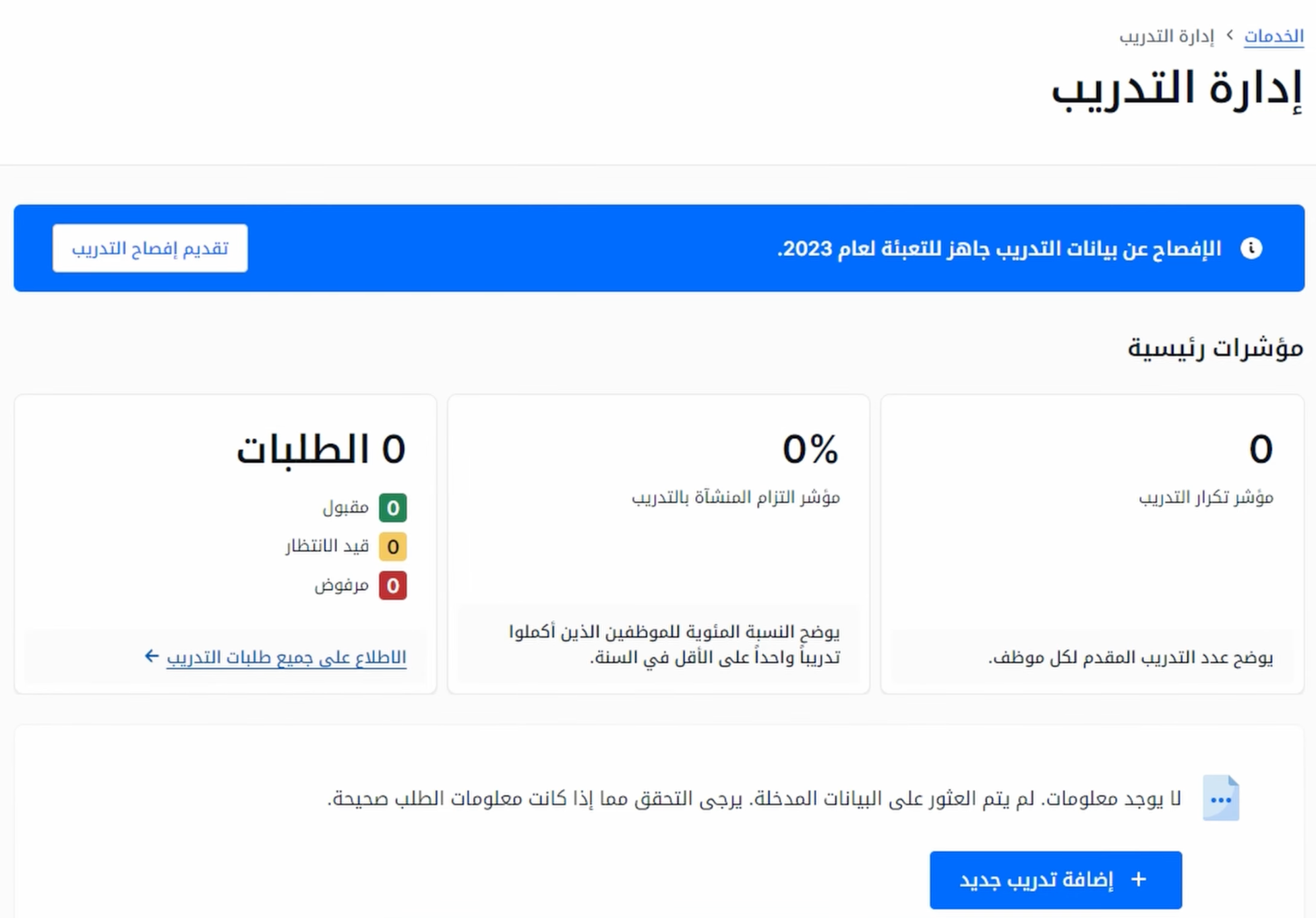
This follows on from filing the training disclosure: that covers the annual summary, and this covers adding an individual training record. If you are filling the form now, the thing worth knowing before you start is in step six — the details cannot be edited once submitted.
1–3. Open the form
- Sign in to Qiwa with your establishment account.
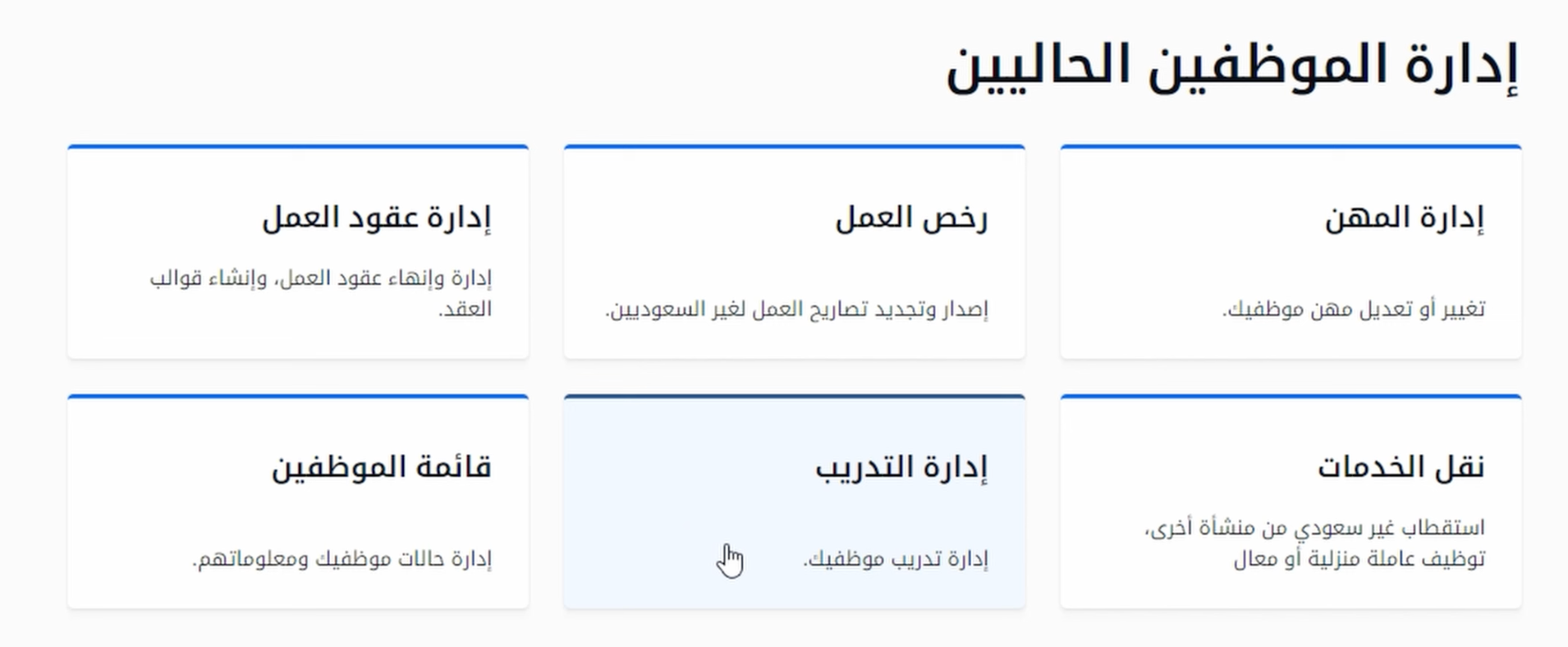
- Go to the services page and select Training Management.
- Choose Add New Training to open the details page.
4. Enter the training details
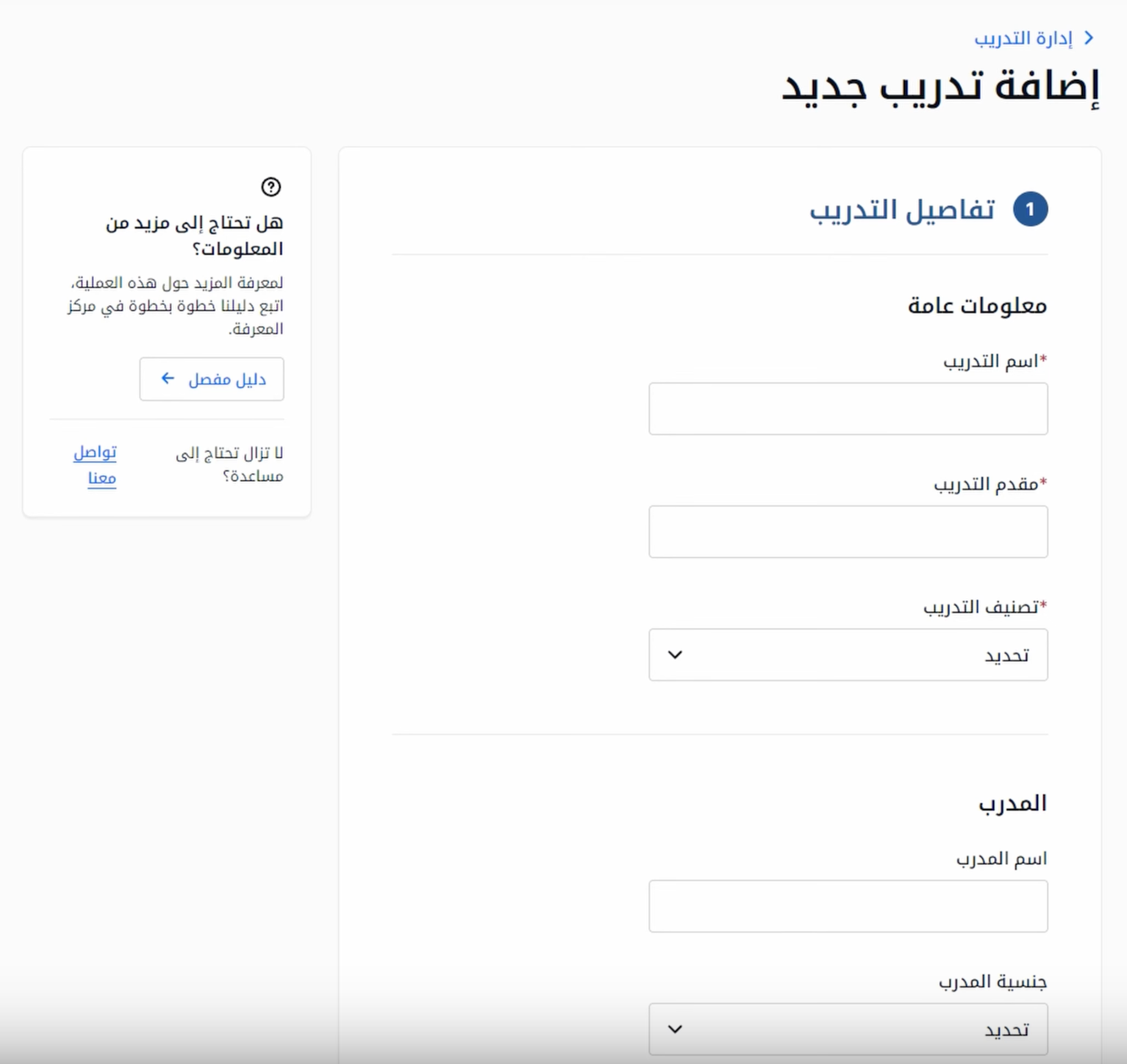
The form asks for ten fields:
- Training name: The name of the course being added.
- Training provider: Who delivered it — an institute, an organization, or a company.
- Training classification: Administrative and soft skills, or technical and specialized in a particular field.
- Trainer name: Who delivered the session.
- Trainer nationality: The trainer’s nationality.
- Location: Inside the establishment, outside it, or virtual.
- Country: Where the training was held.
- Dates: Start and end dates.
- Total hours: The total number of training hours.
- Certificates: Whether certificates were issued to the trainees.
Total hours is the field worth getting right rather than estimating. It feeds the average-hours-per-worker figure in the annual disclosure, and an estimate entered here becomes an estimate reported there.
5. Select the employees
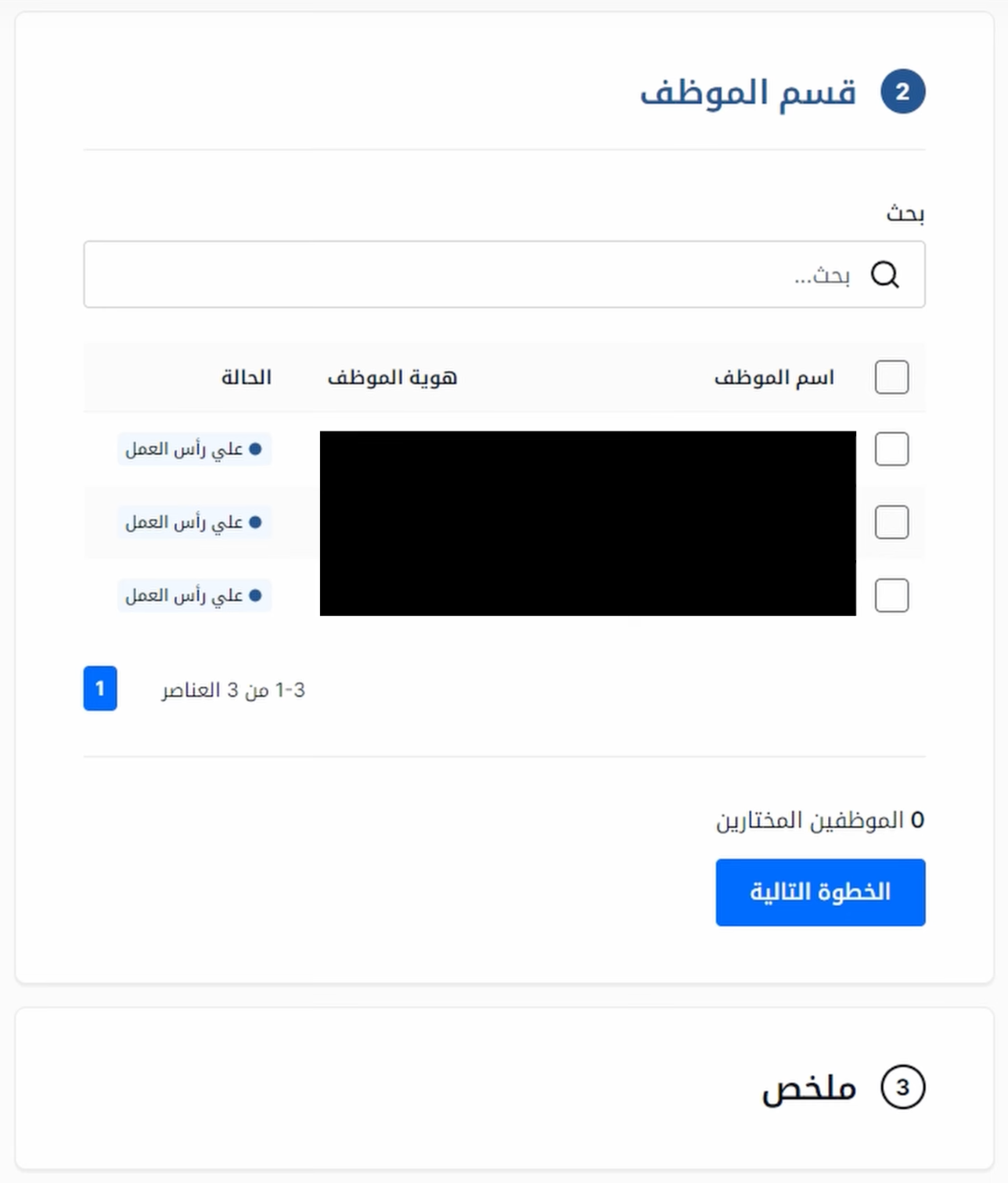
The next screen lists every employee registered to the establishment. Select the ones who attended and continue.
6. Check everything
Review each field before continuing. Once the training is submitted the details cannot be edited, which makes this the only step where the time spent is worth anything.
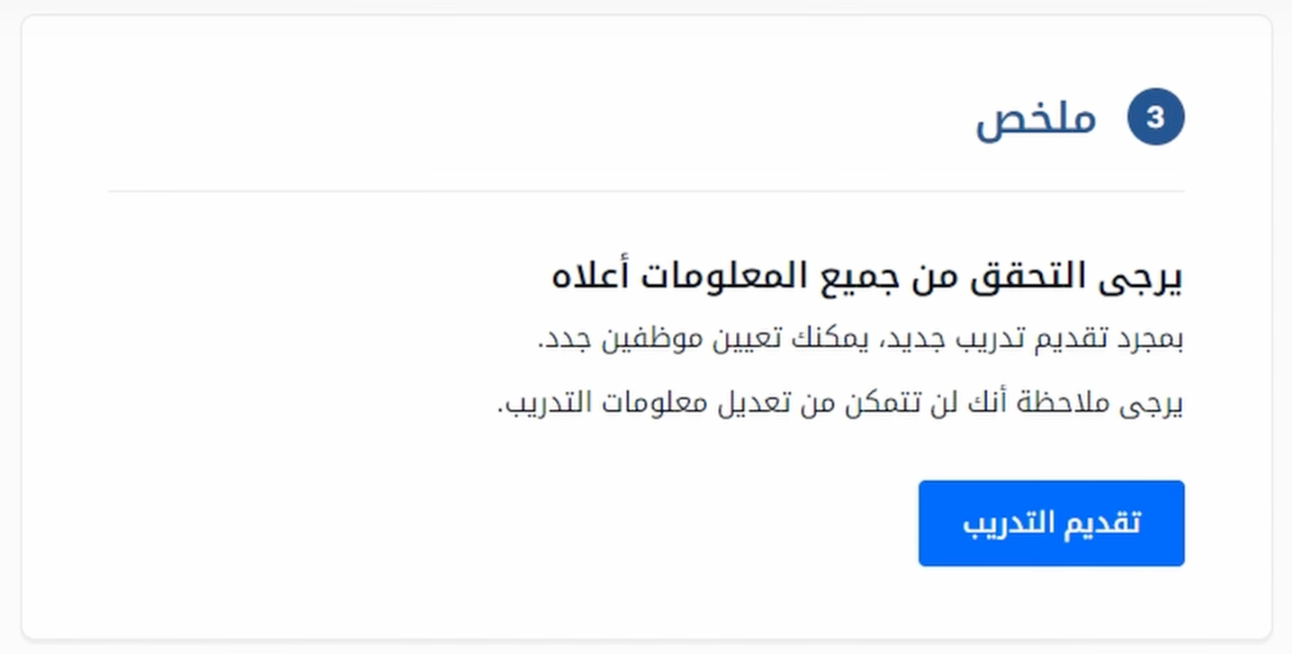
7. Submit
On submission, the selected employees are notified. They can see the training details and either confirm or decline their attendance, so a record submitted against the wrong person comes back rather than sitting in the data.
That confirmation step is worth planning for if you are entering a year of training at once: a batch of notifications arriving with no warning tends to produce declines from people who simply do not recognise a course name from eight months ago.