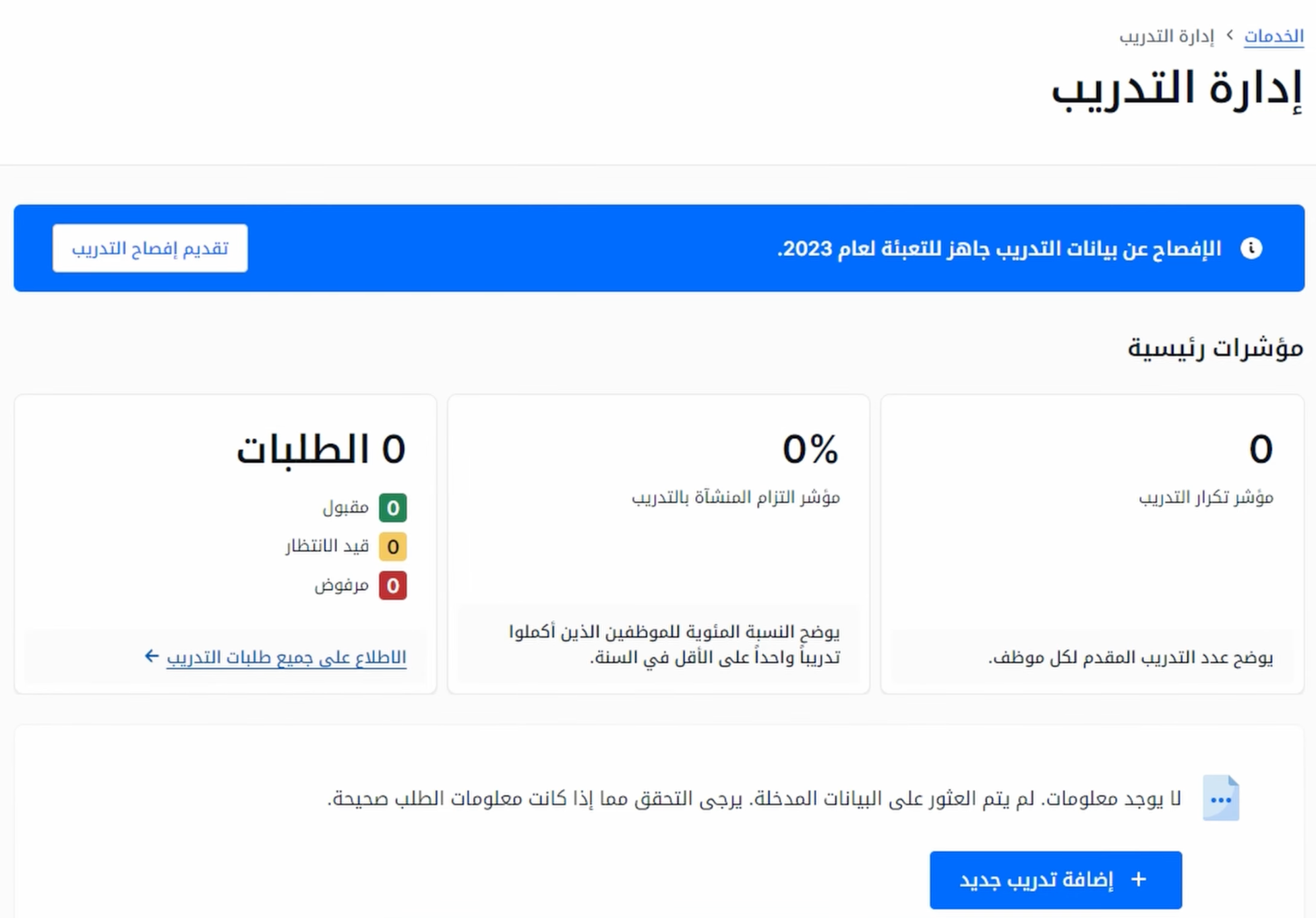
This walkthrough covers adding an individual training record. If you are filling the form now, read step six before you start: the details cannot be edited once submitted.
1–3. Open the form
- Sign in to Qiwa with your establishment account.
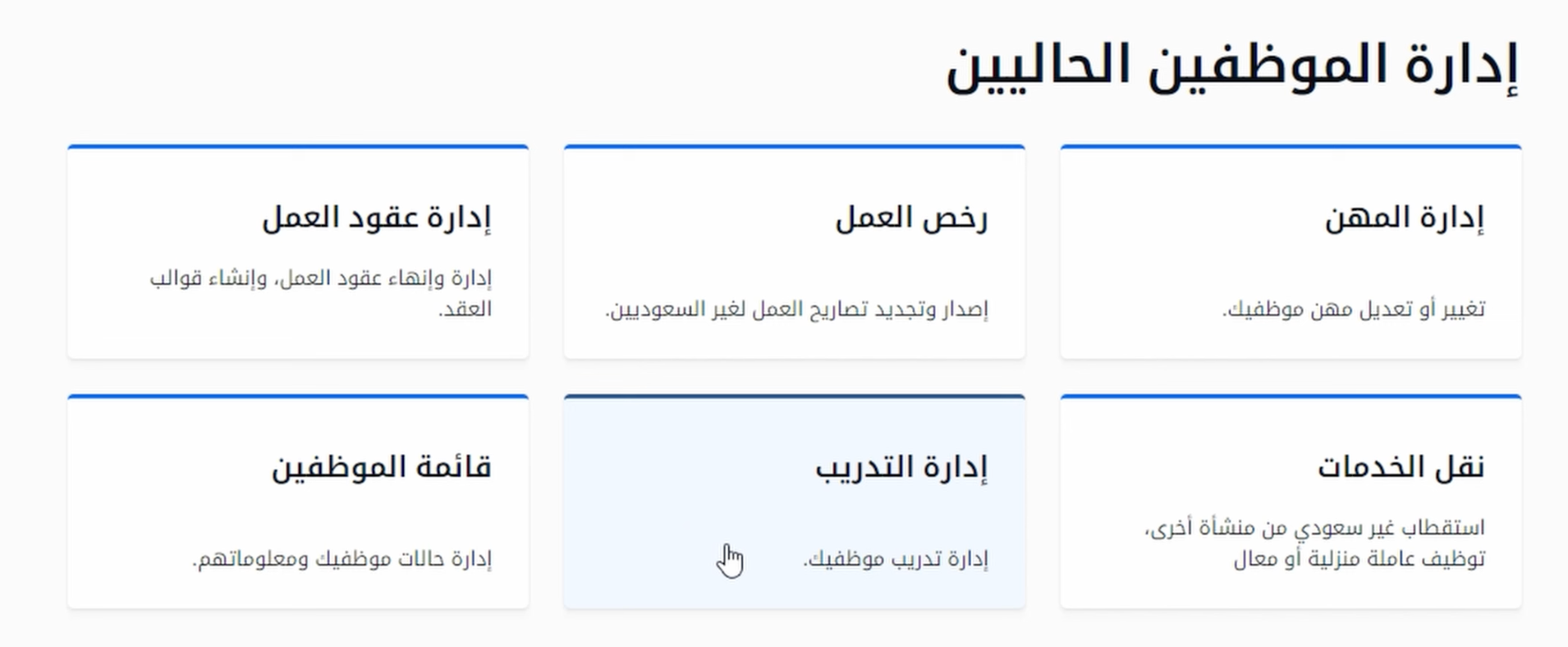
- Go to the services page and select Training Management.
- Choose Add New Training to open the details page.
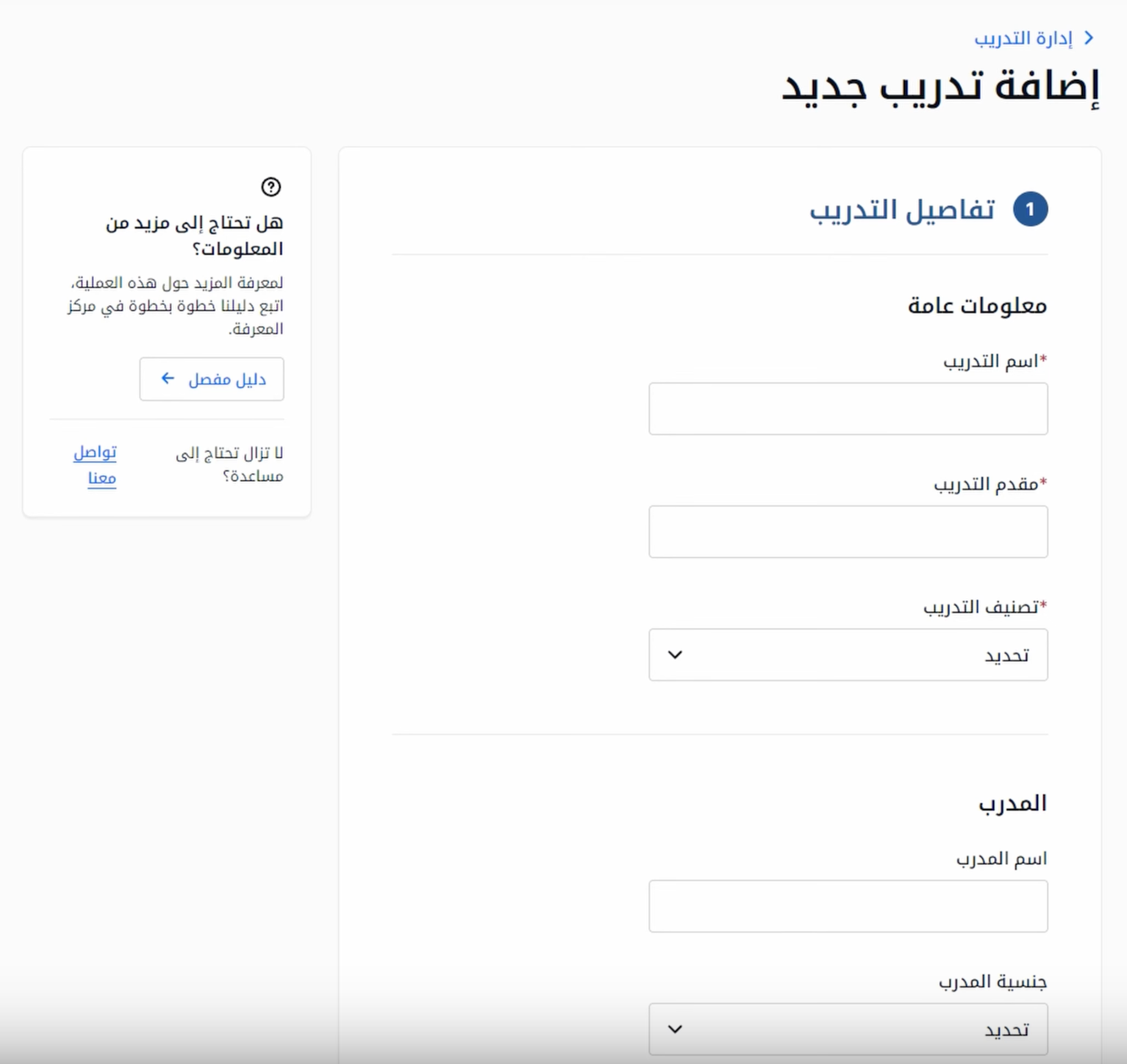
4. Enter the training details
The form asks for ten fields:
- Training name: The name of the course being added.
- Training provider: Who delivered it: an institute, an organization, or a company.
- Training classification: Administrative and soft skills, or technical and specialized in a particular field. This describes the subject. The annual disclosure’s breakdown by type of training (course, workshop, e-learning) is a separate question.
- Trainer name: Who delivered the session.
- Trainer nationality: The trainer’s nationality.
- Location: Inside the establishment, outside it, or virtual.
- Country: Where the training was held.
- Dates: Start and end dates.
- Total hours: The total number of training hours.
- Certificates: Whether certificates were issued to the trainees.
Enter the hours the training actually ran, not an estimate. As published — confirm on Qiwa — the annual disclosure asks for average training hours per worker, and records entered accurately here are ones you can check that figure against.
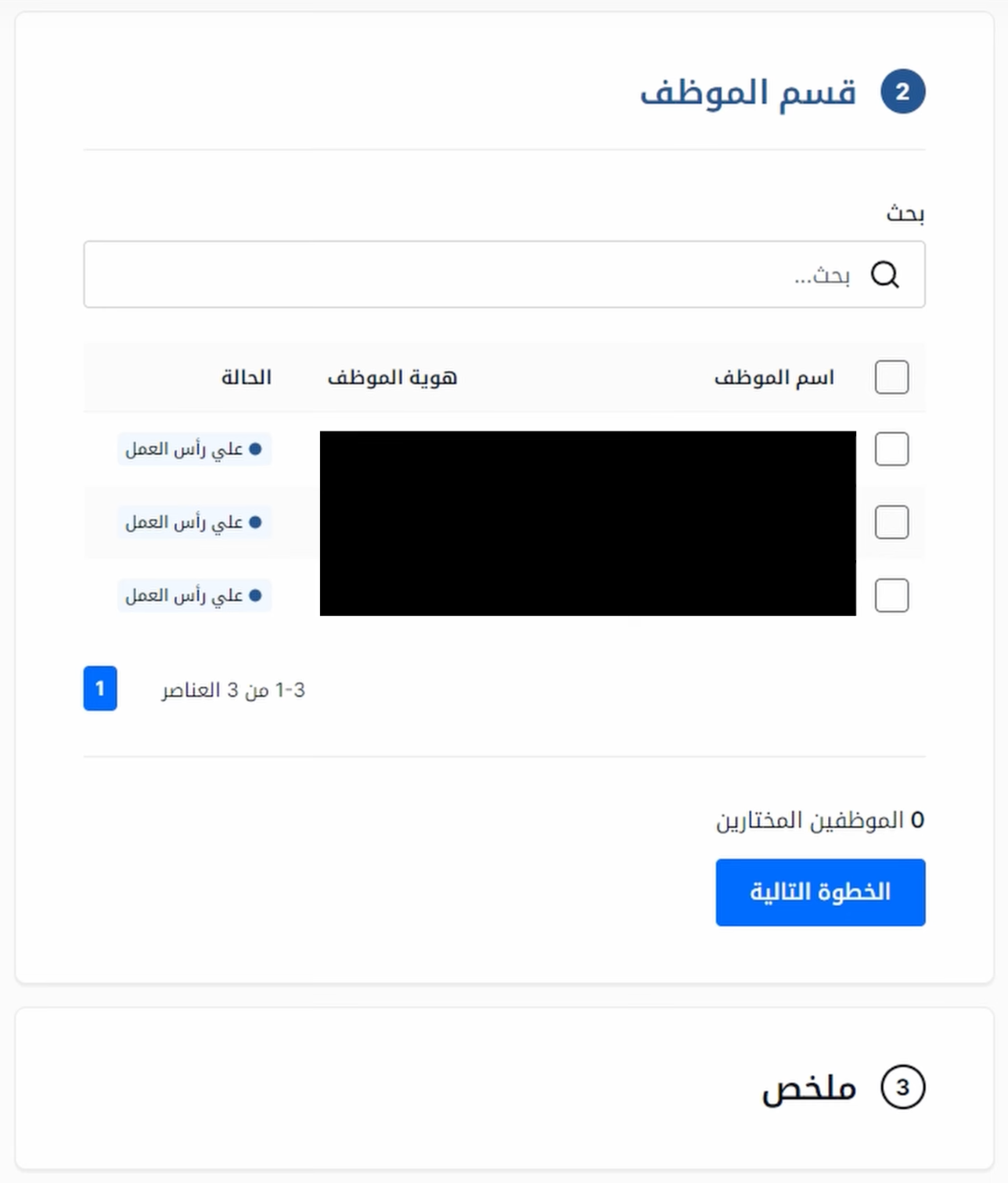
5. Select the employees
The next screen lists every employee registered to the establishment. Select the ones who attended and continue.
6. Check everything
Review each field before continuing. Once the training is submitted its details cannot be edited, so this is the step to slow down for.
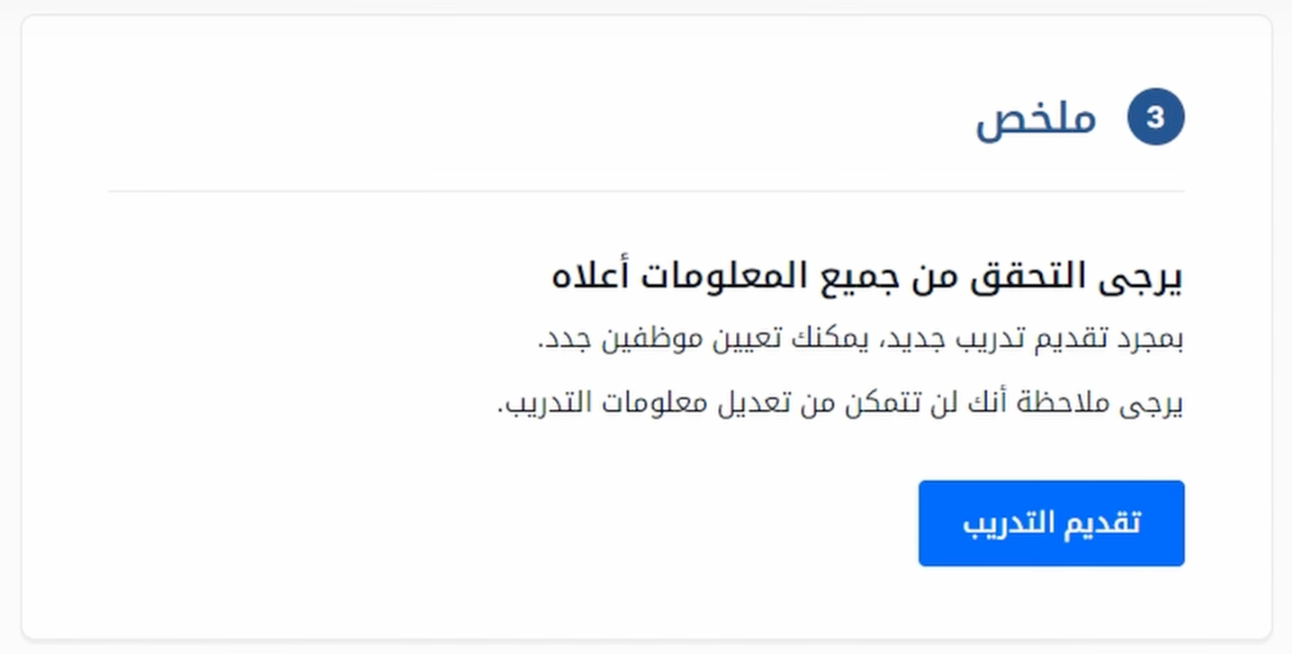
7. Submit
Submit the training. The summary screen notes that you can still assign more employees to it after submission. Only the training details are locked.
For anything the screens do not explain, the form links to Qiwa’s own step-by-step guide in its knowledge center.